
Connecting pgAdmin through an SSH tunnel — and landing in the wrong database
pgAdmin connected on the first try and showed me a server with no tables in it. Nothing was broken: on a Coolify VPS every application brings its own PostgreSQL, they all answer to the user postgres, and a successful login tells you almost nothing about which one you reached.
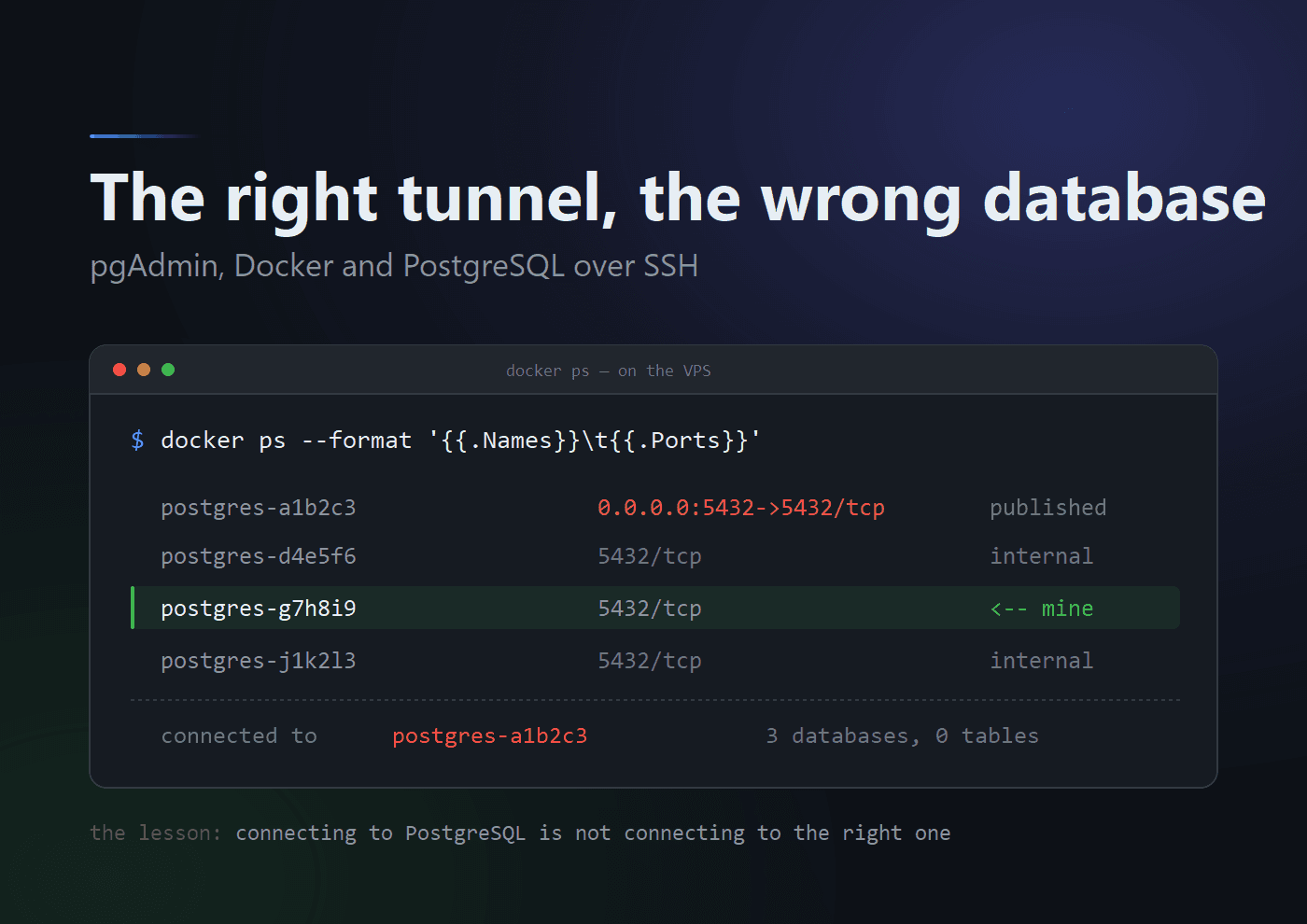
pgAdmin connected on the first try. The green tick appeared, the tree expanded, and the server sat there with three databases in it:
postgres
template0
template1
Not one of my application's tables. No bookings, no tenants, no users. An entirely healthy, entirely empty PostgreSQL server.
The temptation at that moment is to assume something is broken — that the tunnel is dropping tables somehow, or the schema is hidden, or permissions are wrong. Nothing was broken. I had connected perfectly to a database server that simply wasn't mine.
That is the lesson this whole exercise turned on, so I will put it at the top:
Successfully connecting to PostgreSQL does not mean you have connected to the correct PostgreSQL.
Here is the whole path — getting pgAdmin onto a database inside Docker on a Hetzner VPS, without opening a port to the internet, and how to tell which of several near-identical servers is the one you actually want.
What I was trying to build
My booking-and-more application runs on a Hetzner Cloud VPS under Coolify. PostgreSQL runs in a Docker container alongside the API, web and worker containers. I wanted pgAdmin on my Windows laptop pointed at that database — for reading rows, sanity-checking counts, and the sort of poking around that is genuinely more pleasant in a GUI than in psql.
The one thing I was not willing to do was publish port 5432.
That is not a hypothetical concern for this server. In an earlier post I described scanning my own VPS and finding PostgreSQL answering the public internet, along with the Coolify dashboard over plaintext HTTP. I had closed all that. Opening it again for my own convenience would have been a poor trade.
So the target shape was:
pgAdmin on laptop
        │
        │ SSH tunnel over port 22
        ▼
Hetzner VPS
        │
        │ Docker private network
        ▼
PostgreSQL container
        │
        ▼
booking_and_more
Everything travels inside SSH. Nothing new listens anywhere.
Two strings that look alike and mean opposite things
The first useful thing docker ps tells you is not the container name. It is the ports column.
docker ps
Some containers showed this:
5432/tcp
and one showed this:
0.0.0.0:5432->5432/tcp
These are not variations of the same thing.
5432/tcp means the container has PostgreSQL listening, reachable by other containers on the same Docker network, and not published onto the VPS host at all. There is no host port. From the host's own shell, 127.0.0.1:5432 reaches nothing.
0.0.0.0:5432->5432/tcp means Docker is listening on port 5432 on every interface of the host, and forwarding to the container. That is a database on the internet, subject only to whatever your provider firewall does.
The second form is worth being suspicious of whenever you find it. And note the trap I wrote about last time: a host firewall like UFW does not close a published container port, because Docker's DNAT rules are evaluated before UFW's INPUT chain. The port looks blocked in your firewall config and answers anyway. The control that actually works is the provider's firewall — the Hetzner Cloud Firewall, sitting outside the machine.
To see what the host itself is listening on:
ss -lntp | grep 5432
LISTEN ... 0.0.0.0:5432 ...
LISTEN ... [::]:5432 ...
Anything here is bound on the host. This matters for the tunnel, because it decides what 127.0.0.1:5432 means once you are inside the server — and, as I found out, it may well be a different container than the one you are after.
pgAdmin will build the tunnel for you
My first instinct was to open a terminal on Windows and leave a forward running:
ssh -N -L 15432:127.0.0.1:5432 root@YOUR_VPS_IP
This works. But it means a terminal window you must remember to keep open, and a connection that dies silently when the laptop sleeps — ssh -N prints nothing on success, so a working tunnel and a dead one look identical.
pgAdmin has SSH tunnelling built in, which is tidier. When registering the server:
Servers → Register → Server → SSH Tunnel tab
Use SSH tunneling: Yes
Tunnel host:       YOUR_VPS_IP
Tunnel port:       22
Username:          root
Authentication:    Identity file
Identity file:     C:\Users\<your-user>\.ssh\id_ed25519
If the key has a passphrase, tick the option to prompt for it.
The two authentications people conflate
This tripped me up for longer than I would like, so it is worth stating plainly. There are two separate credentials in play, and neither one is the other:
SSH authentication              PostgreSQL authentication
    user: root                      user: postgres
    SSH private key                 PostgreSQL password
    key passphrase
The SSH key passphrase gets you onto the VPS. The PostgreSQL password gets you into the database once you are there. pgAdmin asks for both, in different tabs, and an error from one reads a lot like an error from the other.
There is a third credential that is also not either of these: your Hetzner or root login password. Three different secrets.
The Connection tab is answered from the server's point of view
This is the conceptual bit that makes the rest fall into place.
Once the SSH tunnel exists, the Connection tab no longer describes "how do I get to the VPS". It describes "where is PostgreSQL, as seen from the VPS". pgAdmin has already arrived at the server; you are now giving it directions for the last hop.
So for a PostgreSQL published on the VPS host itself:
Host name/address:     127.0.0.1
Port:                  5432
Maintenance database:  postgres
Username:              postgres
Password:              <PostgreSQL password>
127.0.0.1 here means the VPS's loopback, not your laptop's.
The mistake to avoid is putting the VPS public IP into the Connection tab. That address belongs in the SSH Tunnel tab. Putting it in both makes pgAdmin travel to the server and then attempt to come back out to the public IP, which either fails or — worse — succeeds against a publicly exposed port and quietly defeats the point of the tunnel.
Landing in the wrong database
Which brings me back to the empty server.
The connection above worked, and gave me postgres, template0, template1 and nothing else. What I had reached was the container holding 0.0.0.0:5432->5432/tcp — the one publishing on the host — because that is what 127.0.0.1:5432 resolves to from inside the VPS.
It was not my application's container.
This is easy to do on a Coolify server, and I suspect on any multi-application host. Every application brings its own PostgreSQL. They are all called something like postgres-<random>, they all listen on 5432 inside their own network, and they all accept the user postgres. A successful login tells you almost nothing about which one you reached.
Three commands sort it out.
Which database and user does this container think it has? This reads the container's environment without printing the password:
docker inspect <postgres-container-name> \
  --format '{{range .Config.Env}}{{println .}}{{end}}' \
  | grep -E '^POSTGRES_(DB|USER)='
For the right one:
POSTGRES_DB=booking_and_more
POSTGRES_USER=postgres
What databases actually exist in it? Rather than installing a PostgreSQL client on the host, use the psql already inside the image:
docker exec -it <postgres-container-name> \
  sh -lc 'psql -U "$POSTGRES_USER" -d "$POSTGRES_DB" -c "\l"'
booking_and_more
postgres
template0
template1
And does it have my tables?
docker exec -it <postgres-container-name> \
  sh -lc 'psql -U "$POSTGRES_USER" -d "$POSTGRES_DB" -c "\dt"'
Twenty-seven tables came back — tenants, memberships, providers, bookings, subscriptions, _prisma_migrations and the rest. No further doubt about which server this was.
Quoting "$POSTGRES_USER" and "$POSTGRES_DB" rather than typing values is worth the habit: it reads the container's own configuration, so it stays correct on a stack where somebody changed the defaults.
Reaching a container that publishes no port
Now the real problem. My application's PostgreSQL showed only:
5432/tcp
No host mapping — which is exactly how it should be, and exactly what makes it awkward to reach. There is no 127.0.0.1:5432 on the host that leads to it.
The direct route is the container's own address on the Docker network:
docker inspect <postgres-container-name> \
  --format '{{range $name,$network := .NetworkSettings.Networks}}{{printf "%s  %s\n" $name $network.IPAddress}}{{end}}'
<docker-network-name> 172.x.x.x
The host can route to that address, and the SSH tunnel terminates on the host — so pgAdmin can use it as the destination for the final hop:
Connection tab
    Host name/address:     172.x.x.x
    Port:                  5432
    Maintenance database:  booking_and_more
    Username:              postgres
    Password:              <the password for THIS container>

SSH Tunnel tab
    Use SSH tunneling:     Yes
    Tunnel host:           YOUR_VPS_IP
    Tunnel port:           22
    Username:              root
    Authentication:        Identity file
    Identity file:         C:\Users\<your-user>\.ssh\id_ed25519
The full path:
pgAdmin
   │
   │ SSH :22
   ▼
Hetzner VPS
   │
   │ Docker private network
   ▼
booking-and-more PostgreSQL :5432
   │
   ▼
booking_and_more
That worked, and every application table appeared.
Every container is its own PostgreSQL
Worth making explicit, because it follows from the above and explains a whole category of confusing failures.
Each PostgreSQL container is an independent server with its own users. The postgres role in server A and the postgres role in server B are unrelated accounts that happen to share a name, and they will have different passwords. Your laptop's local PostgreSQL install is a third unrelated server with a fourth unrelated password.
So "the postgres password" is not a thing. There is only "the postgres password for this container".
If you need to set it for a specific one:
docker exec -it --user postgres <postgres-container-name> \
  psql -d booking_and_more
then, inside psql:
\password postgres
Enter it twice, and \q to leave.
One important caveat that is not obvious: changing the POSTGRES_PASSWORD environment variable and redeploying does not do this. That variable is only read by initdb, when the container starts against an empty data directory. On a container with an existing volume it is ignored entirely — so editing it changes nothing about the database, while potentially handing your application containers a credential the server does not accept. Use \password for the database, then update the environment variable to match, and expect a window between the two where connections fail.
Special characters in the password field
A small one that cost me a few minutes. When typing a password directly into pgAdmin's password field, enter it literally:
p@ss/word      →  type:  p@ss/word
                  not:   p%40ss%2Fword
Percent-encoding is for building connection URLs, where @ separates credentials from the host and / ends the authority section. pgAdmin's field is not a URL, and encoding it there just makes the password wrong.
The same characters are a genuine hazard in a DATABASE_URL, though — which is why, when I generate a database password now, I use openssl rand -hex rather than -base64. Hex has no @, no /, and no +, so it cannot corrupt a connection string. A / in a base64 password terminates the URL's authority and produces a baffling wrong host error rather than an honest authentication failure.
Know which prompt you are typing into
An embarrassing but genuinely common time-waster: typing a shell command into psql, or SQL into the shell.
root@my-ubuntu-server:~#     Linux shell — docker commands go here
postgres=#                   PostgreSQL — SQL and backslash commands
postgres-#                   PostgreSQL, mid-statement, waiting for a semicolon
That third prompt is the one that catches people. postgres-# means PostgreSQL has read something it considers unfinished and is waiting for you to complete it. Everything you type afterwards gets appended to that pending statement, so the errors it eventually produces describe a command you never meant to write.
Ctrl+C abandons the statement. \q leaves psql.
Container IPs move
The Docker network address works, and it is the fastest way to get connected today. But it is not stable: recreate the container — any redeploy will — and the address may change. Then pgAdmin fails with a connection timeout that looks like a broken tunnel and is not.
For a permanent setup the better shape is to publish the port on the VPS loopback only:
ports:
  - "127.0.0.1:15433:5432"
pgAdmin then uses a fixed destination:
Host: 127.0.0.1
Port: 15433
Laptop
   │
   │ SSH port 22
   ▼
VPS
   │
   └── 127.0.0.1:15433
             │
             ▼
       PostgreSQL:5432
The 127.0.0.1: prefix is the entire security story here, and it is load-bearing. With it, Docker binds the loopback interface only and nothing outside the machine can reach the port. Without it — plain "15433:5432" — Docker binds all interfaces and you have published a database to the internet, which is precisely the thing this whole exercise was arranged to avoid. A non-standard port number is not protection; it is a slightly slower scan.
I also gave it 15433 rather than 5432 deliberately. My laptop runs a local PostgreSQL on 5432 for development, and a tunnel that lands on the same number invites the one mistake with real consequences: running something destructive against production while believing you are on your development database.
The security model, stated plainly
Publicly accessible          Not publicly accessible
-------------------          -----------------------
22   SSH                     5432  PostgreSQL
80   HTTP                    6379  Redis
443  HTTPS                   internal application ports
                             Docker database ports
Administration goes through the one door that is already open and already encrypted:
Administrator laptop
        │
        │ SSH
        ▼
VPS
        │
        │ loopback or Docker private network
        ▼
PostgreSQL
The database never needs a public port for a human to administer it. Convenience was the only argument for opening one, and an SSH tunnel supplies the convenience without the argument.
What I took away
The commands matter less than the order of questions. When a database GUI connects and shows you the wrong thing, the instinct is to debug the connection — and the connection is fine. The right question is which server answered.
1. docker ps                     which containers, and which publish a port
2. docker inspect POSTGRES_DB    which one claims to be my application's
3. docker exec … psql -c "\l"    which databases really exist there
4. docker exec … psql -c "\dt"   are my tables in it
5. only then — point pgAdmin at it
Four commands before touching the GUI, and each one eliminates a whole class of wrong answer.
The other thing I would tell myself at the start: an empty database is information, not a failure. It was telling me precisely what was wrong — right protocol, right port, right credentials, wrong machine — and I spent a while treating it as a malfunction instead of reading it.